




































Set up HaryAI in your tools
Pick your tool, then one of three ways. It takes a few minutes.
CC Switch is a free app that switches your tools between providers. Install it from its GitHub releases page.
Codex
1. One click with CC Switch
On your account page, under Change the model your agent runs on, open the Codex tab, choose One click with CC Switch and press Import to CC Switch.
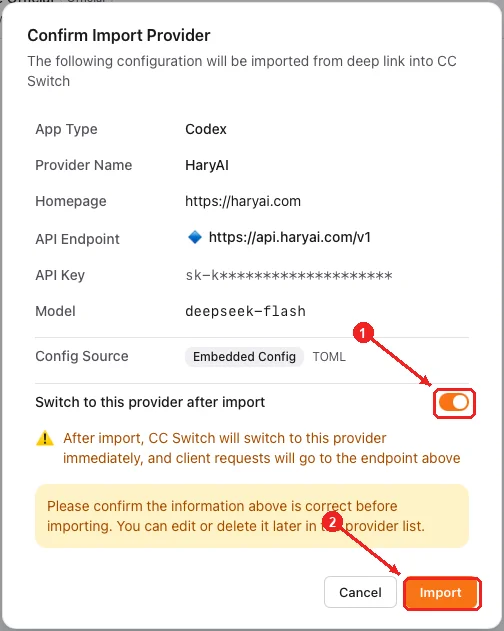
When CC Switch asks, turn on Switch to this provider after import, press Import, then restart Codex.
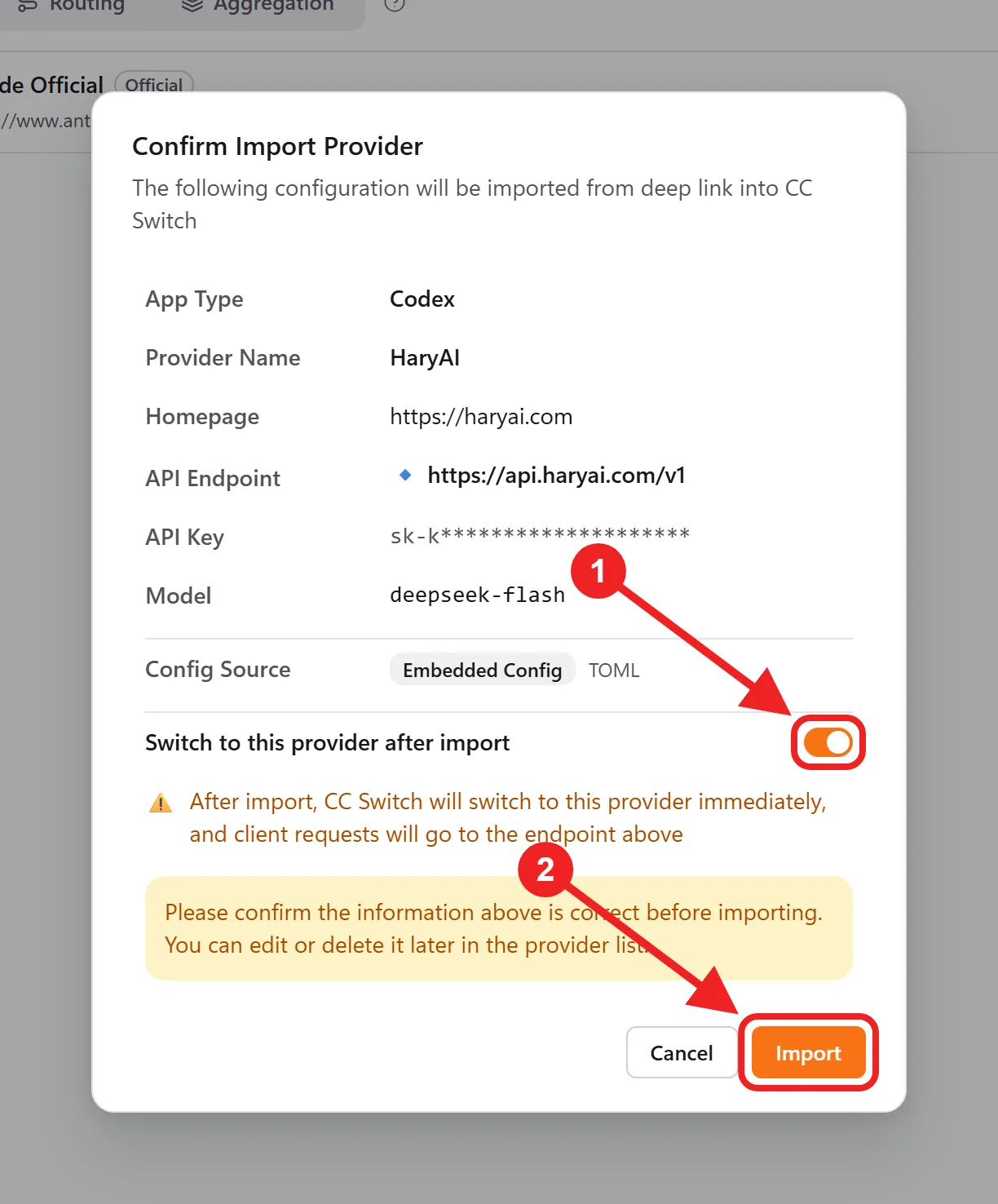
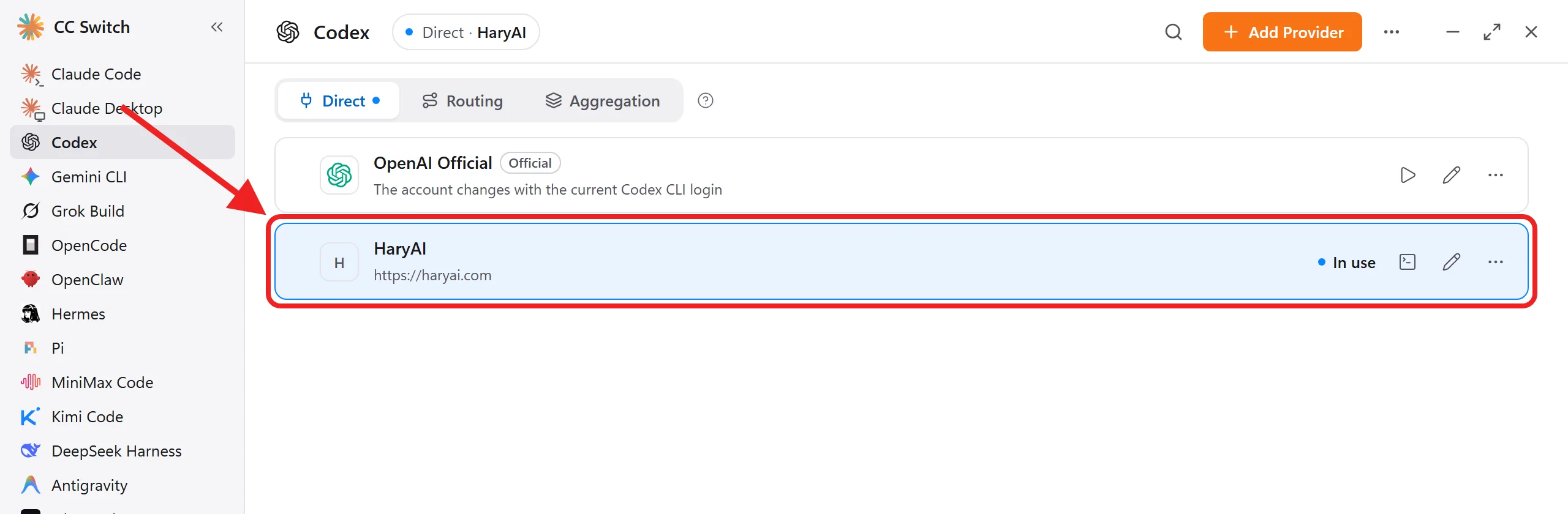
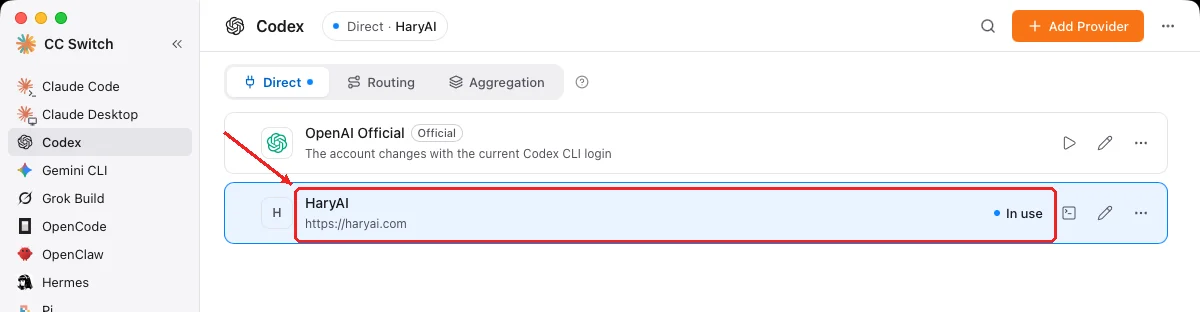
Check: Quit Codex completely, reopen it and send a short message. A reply means you're set.
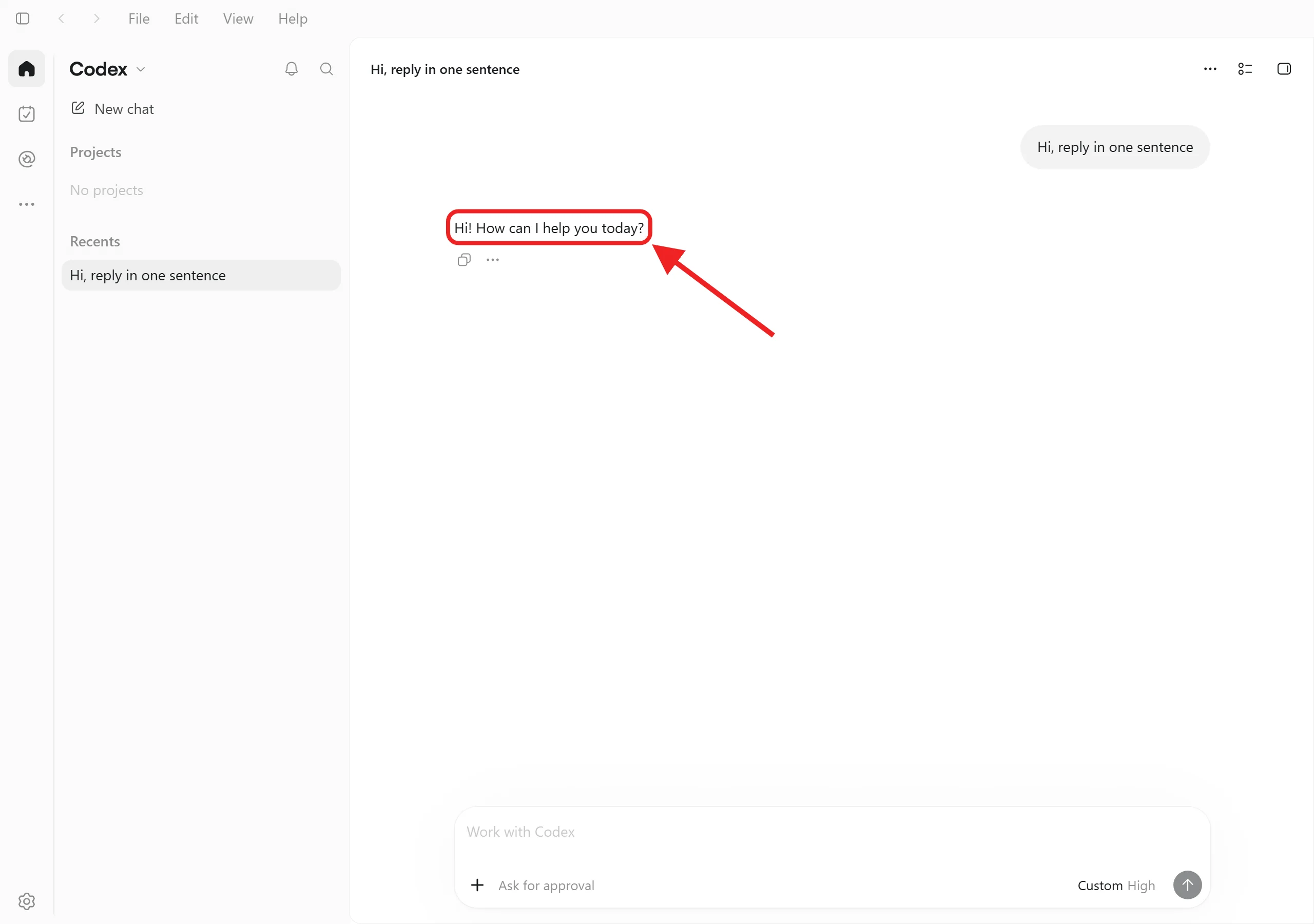
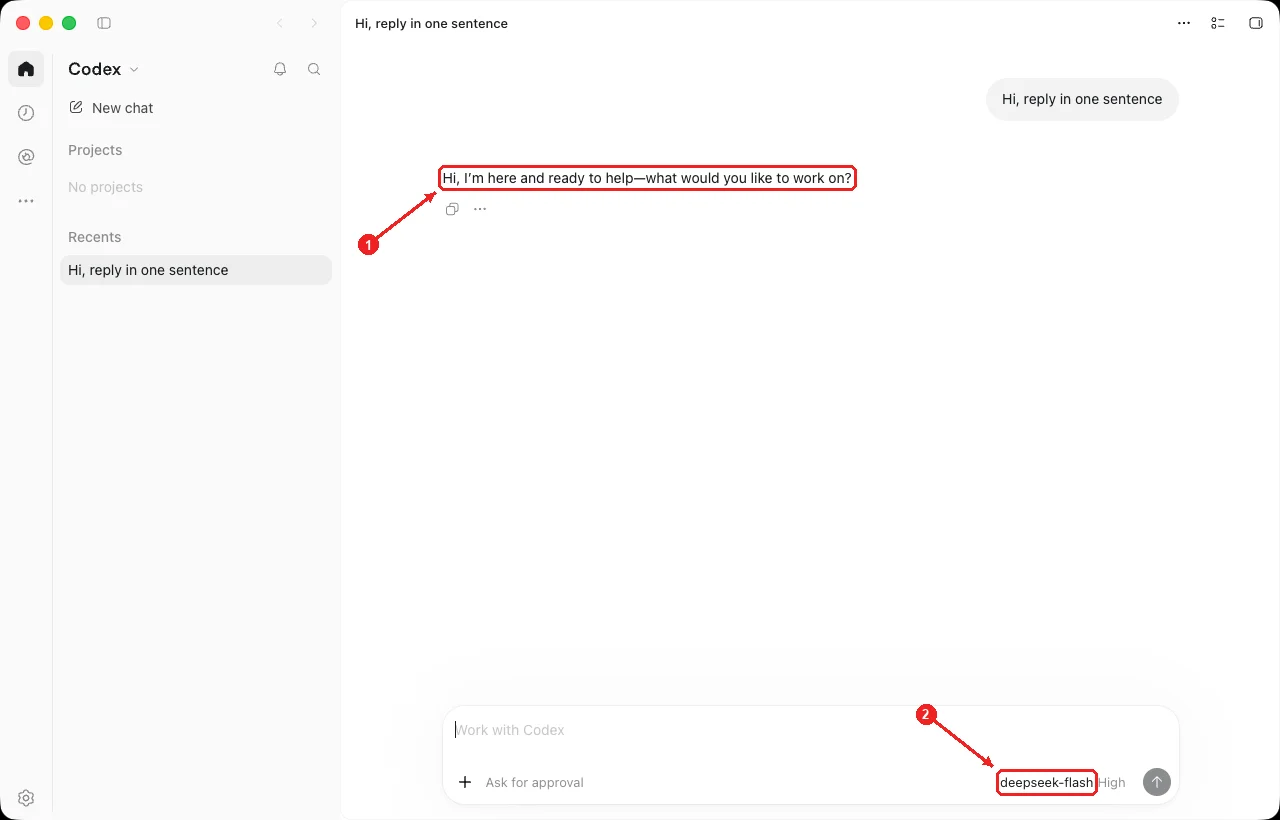
2. Let your agent do it
Send this to Codex or Claude Code (or whatever AI assistant you use). Put your key in place of <your HaryAI key> first.
Set up Codex on this computer to use HaryAI.
The full guide is at https://haryai.com/en/docs/setup. Read it first if anything is unclear.

1. Back up ~/.codex/config.toml (copy it to ~/.codex/config.toml.bak). If it doesn't exist, create it.
2. Add these settings. If a setting with the same name is already there, change its value. Leave everything else as it is.

```toml
model = "deepseek-flash"
model_provider = "haryai"
forced_login_method = "api"
model_reasoning_effort = "high"

[model_providers.haryai]
name = "HaryAI"
base_url = "https://api.haryai.com/v1"
wire_api = "responses"
experimental_bearer_token = "<your HaryAI key>"
model_catalog_url = "https://api.haryai.com/v1/models"
```

3. Then tell me to quit Codex completely, reopen it, and send a short message to check that it answers.
4. Also tell me how to undo this: put the backup back and reopen Codex.
Check: Quit Codex completely, reopen it and send a short message. A reply means you're set.
3. By hand
Add this to ~/.codex/config.toml, with your key in place of <your HaryAI key>. The same file covers the Codex CLI, Codex in the ChatGPT desktop app, and the VS Code extension.
model = "deepseek-flash"
model_provider = "haryai"
forced_login_method = "api"
model_reasoning_effort = "high"

[model_providers.haryai]
name = "HaryAI"
base_url = "https://api.haryai.com/v1"
wire_api = "responses"
experimental_bearer_token = "<your HaryAI key>"
model_catalog_url = "https://api.haryai.com/v1/models"
If you signed in to Codex with ChatGPT, this switches it to your HaryAI key. Your earlier ChatGPT sessions are kept.
Check: Quit Codex completely, reopen it and send a short message. A reply means you're set.
Claude Code
1. One click with CC Switch
On your account page, under Change the model your agent runs on, open the Claude Code tab, choose One click with CC Switch and press Import to CC Switch.
When CC Switch asks, turn on Switch to this provider after import, press Import, then restart Claude Code.
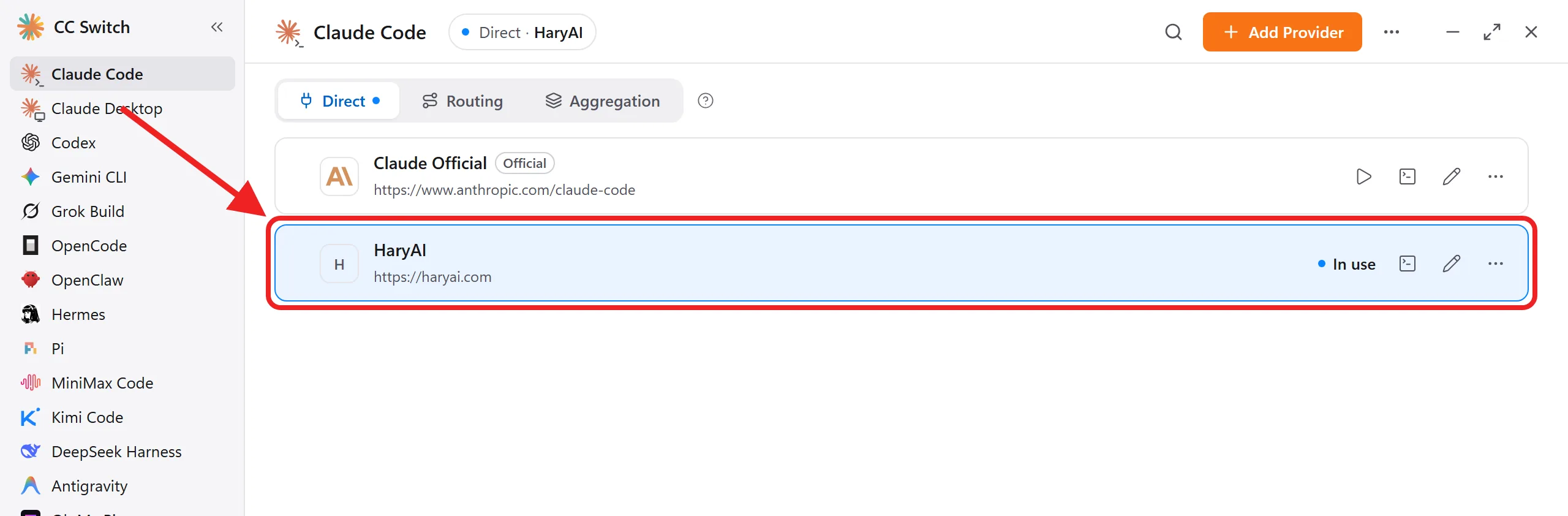
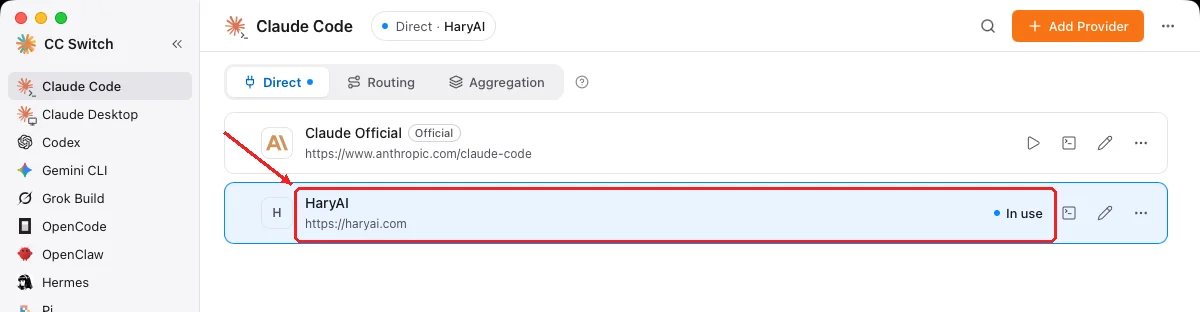
Check: Start a new Claude Code session and send a short message. A reply means you're set.
2. Let your agent do it
Send this to Codex or Claude Code (or whatever AI assistant you use). Put your key in place of <your HaryAI key> first.
Set up Claude Code on this computer to use HaryAI.
The full guide is at https://haryai.com/en/docs/setup. Read it first if anything is unclear.

1. Back up ~/.claude/settings.json (copy it to ~/.claude/settings.json.bak). If it doesn't exist, create it containing {}.
2. Add the entries below to the "env" object in that file. If an entry with the same name is already there, change its value. Keep every other setting, and keep the file valid JSON.

```json
{
  "env": {
    "ANTHROPIC_BASE_URL": "https://api.haryai.com",
    "ANTHROPIC_AUTH_TOKEN": "<your HaryAI key>",
    "ANTHROPIC_MODEL": "deepseek-flash[1m]",
    "ANTHROPIC_DEFAULT_OPUS_MODEL": "deepseek-flash[1m]",
    "ANTHROPIC_DEFAULT_SONNET_MODEL": "deepseek-flash[1m]",
    "ANTHROPIC_DEFAULT_HAIKU_MODEL": "deepseek-flash",
    "CLAUDE_CODE_SUBAGENT_MODEL": "deepseek-flash",
    "CLAUDE_CODE_EFFORT_LEVEL": "max",
    "CLAUDE_CODE_AUTO_COMPACT_WINDOW": "786432",
    "CLAUDE_CODE_DISABLE_ARTIFACT": "1"
  }
}
```

3. Then tell me to start a new Claude Code session and send a short message to check that it answers.
4. Also tell me how to undo this: put the backup back and start a new session.
Check: Start a new Claude Code session and send a short message. A reply means you're set.
3. By hand
Add this to ~/.claude/settings.json, with your key in place of <your HaryAI key>. If the file already has an "env" block, add these entries to it. This covers the Claude Code CLI and the VS Code extension.
{
  "env": {
    "ANTHROPIC_BASE_URL": "https://api.haryai.com",
    "ANTHROPIC_AUTH_TOKEN": "<your HaryAI key>",
    "ANTHROPIC_MODEL": "deepseek-flash[1m]",
    "ANTHROPIC_DEFAULT_OPUS_MODEL": "deepseek-flash[1m]",
    "ANTHROPIC_DEFAULT_SONNET_MODEL": "deepseek-flash[1m]",
    "ANTHROPIC_DEFAULT_HAIKU_MODEL": "deepseek-flash",
    "CLAUDE_CODE_SUBAGENT_MODEL": "deepseek-flash",
    "CLAUDE_CODE_EFFORT_LEVEL": "max",
    "CLAUDE_CODE_AUTO_COMPACT_WINDOW": "786432",
    "CLAUDE_CODE_DISABLE_ARTIFACT": "1"
  }
}
Check: Start a new Claude Code session and send a short message. A reply means you're set.
Claude Desktop
Claude Desktop is set up with CC Switch.
1. One click with CC Switch
On your account page, under Change the model your agent runs on, open the Claude Desktop tab, choose One click with CC Switch and press Import to CC Switch.
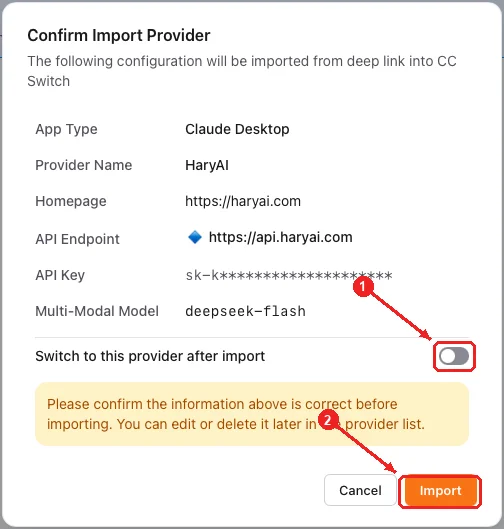
When CC Switch asks, turn off Switch to this provider after import and press Import.
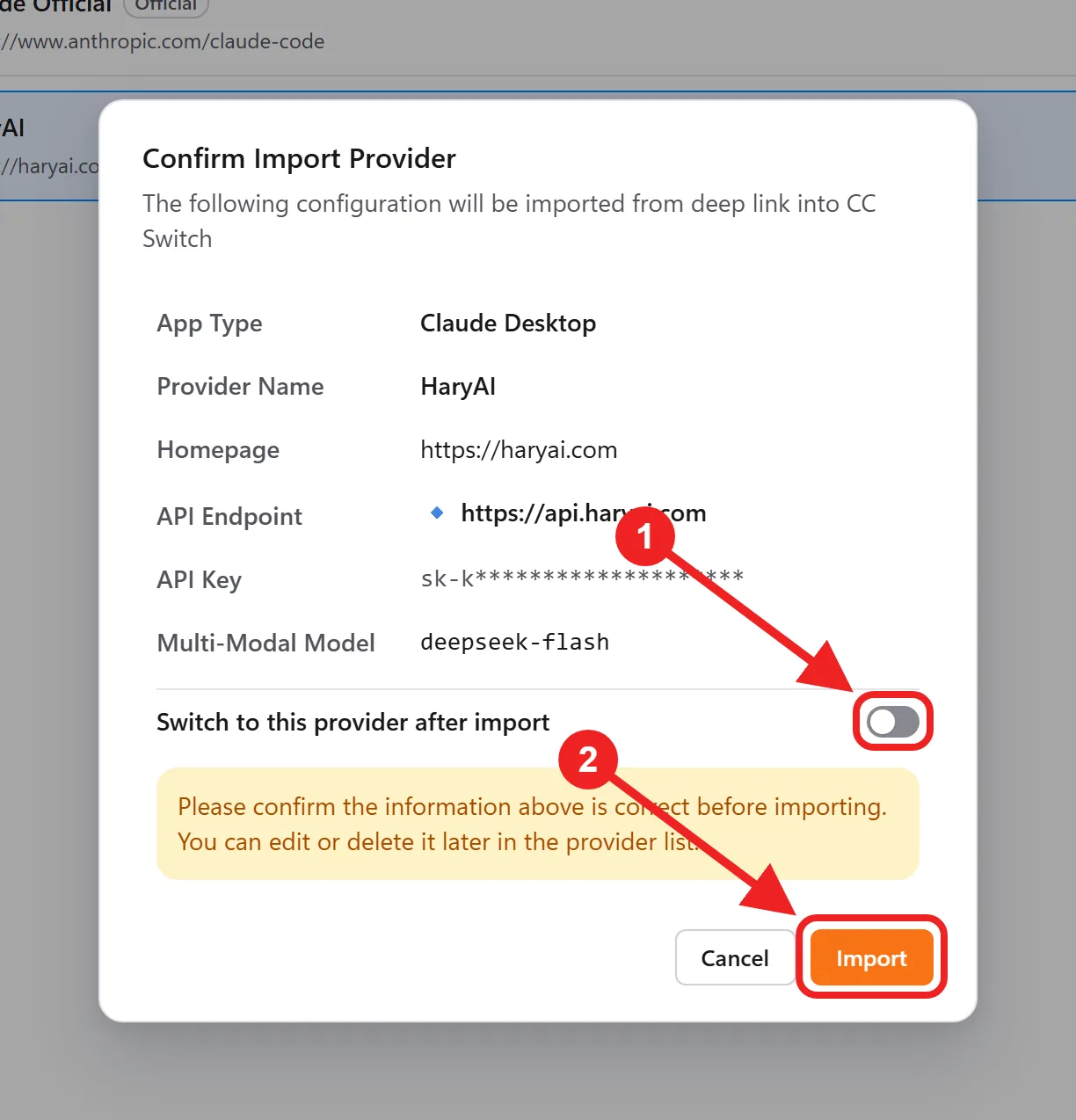
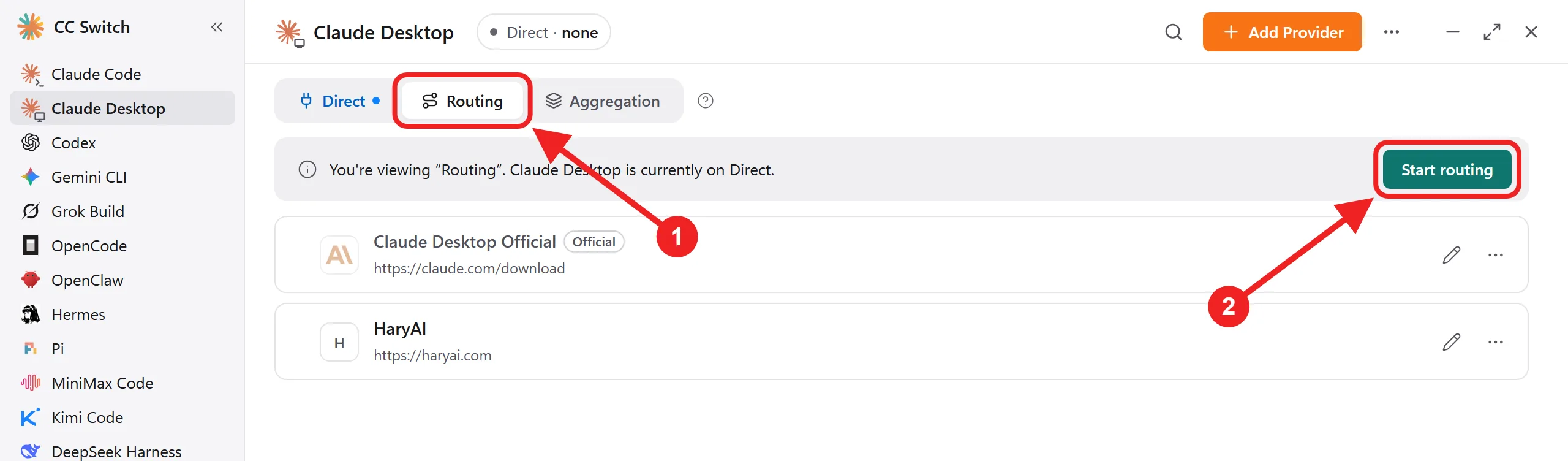
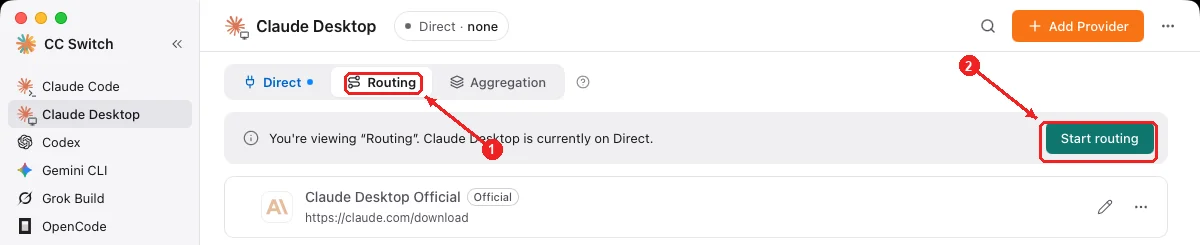
In CC Switch, choose Claude Desktop in the sidebar, open Routing at the top and press Start routing.
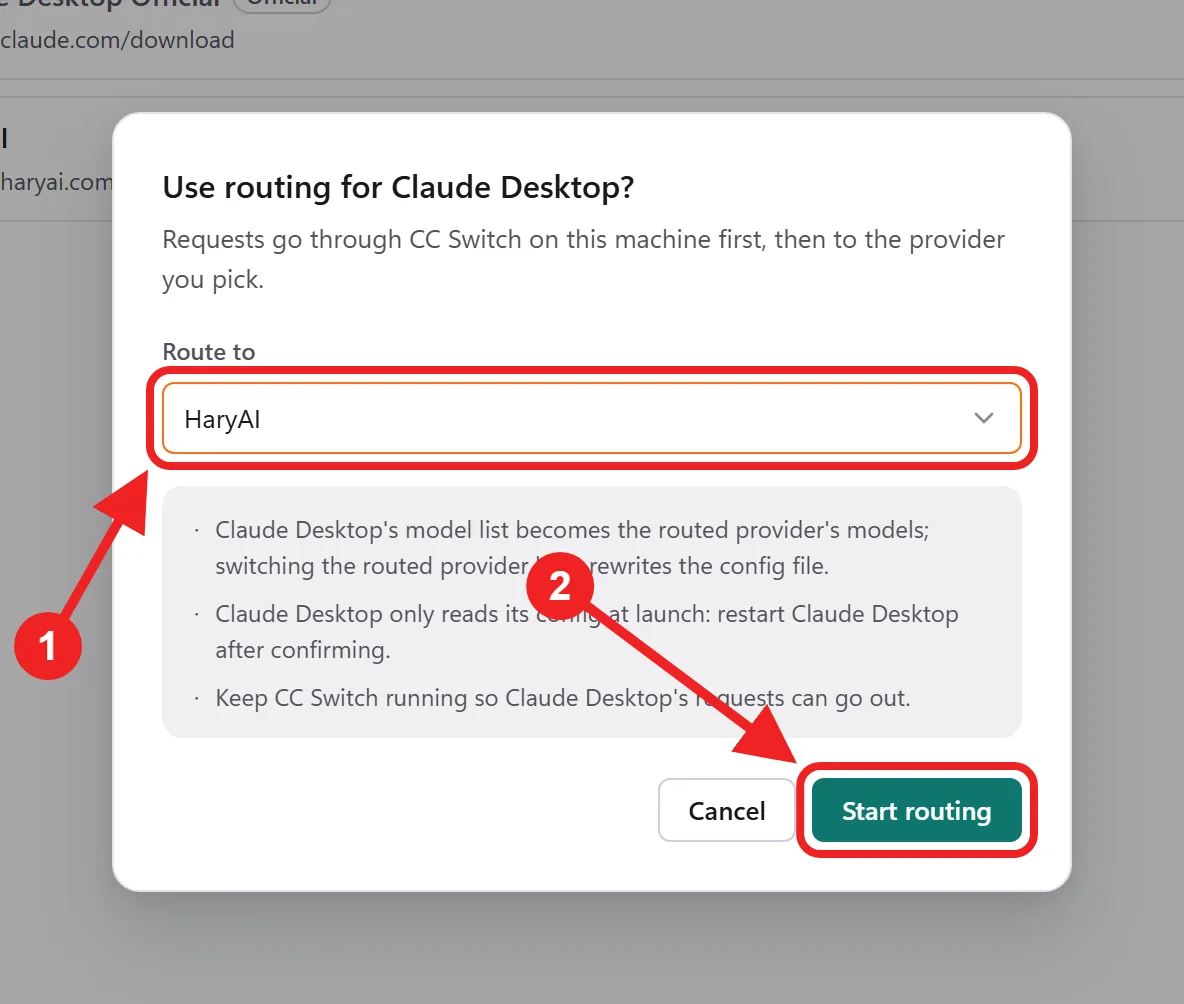
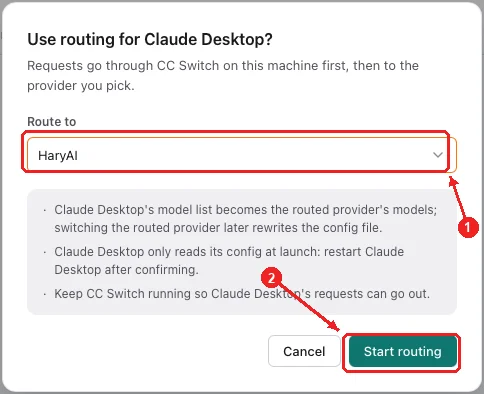
Under Route to, pick HaryAI and press Start routing.
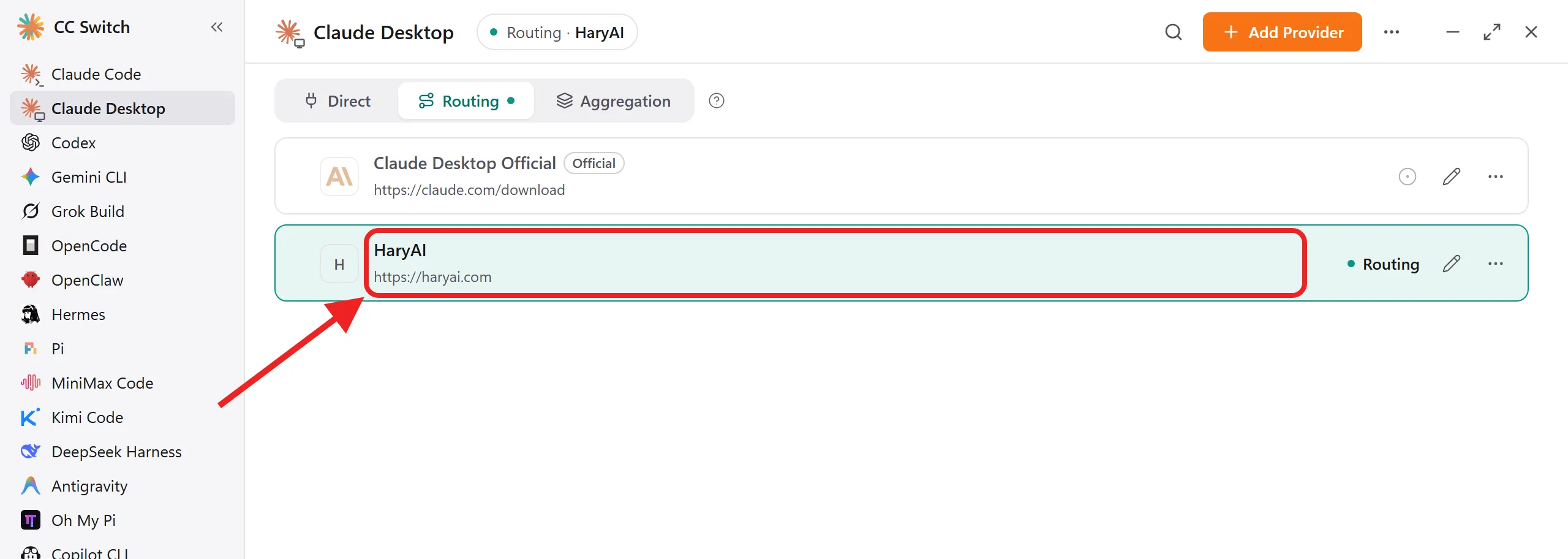
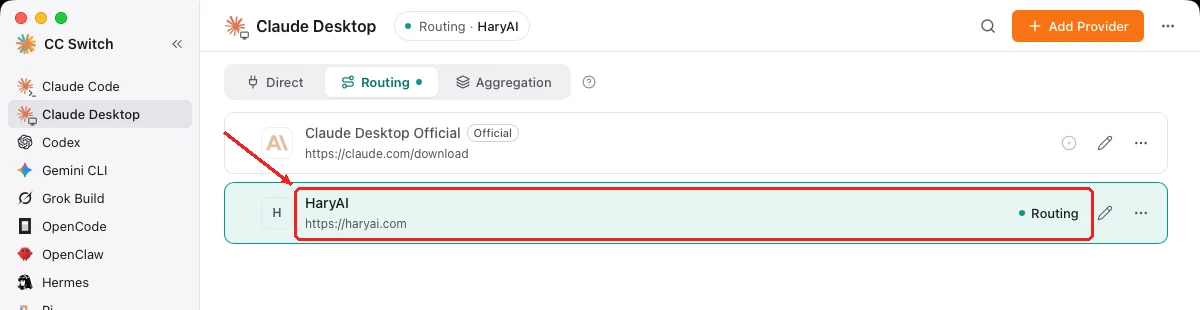
Quit Claude Desktop completely and open it again. Keep CC Switch running while you use it.
Check: Restart Claude Desktop and start a new chat. A reply means you're set.
Also works in DeepSeek Harness, OpenCode, Hermes Agent, and Trae.
If something's off
401 or “invalid key”
The key was copied wrong. On your account page, press Show and copy it again.
“Insufficient quota” or 额度不足
Your Coding Plan and balance are used up. Top up or get a Coding Plan, and the next request works.
No reply after setup
Quit the tool completely and open it again.